How to Make a Brat Wallpaper (Phone & Desktop) — Free Step-by-Step Guide
Search “brat wallpaper” right now and almost everything you’ll find is the same thing: a gallery of pre-made images somebody else designed, sitting on a download site next to five hundred wallpapers that have nothing to do with Charli XCX. Fine if one of them happens to say the exact word you want, in the exact shade of green you want. Not so fine if it doesn’t — and it usually doesn’t, because it’s not your wallpaper. It’s just a picture someone else uploaded.
This guide skips the gallery entirely. You’re going to make your own — your own word, your own line, sized correctly for whatever you’re putting it on — in about the time it takes to read this sentence twice.
What Actually Makes a Wallpaper “Brat”
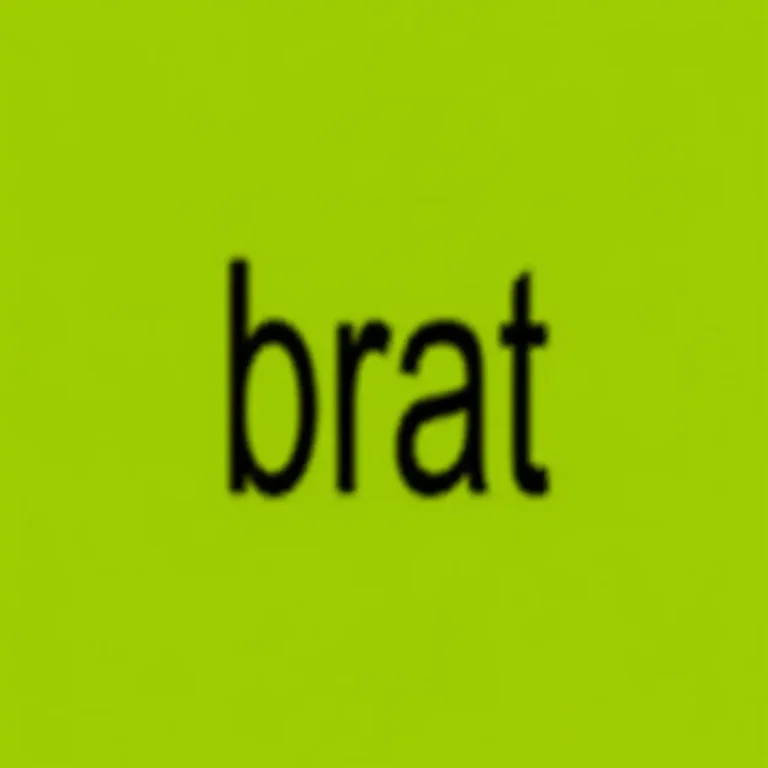
Quick version, since the full story lives elsewhere on this site: a brat wallpaper is built on the same visual language as Charli XCX’s 2024 album cover — a flat, saturated lime-green background, lowercase condensed type, and a slightly blurred, unpolished finish. No gradients, no drop shadows, no decoration. The whole point is that it looks almost too simple, which is exactly what makes it recognizable at a glance.
(If you want the deeper story — where the color and typography actually came from — that’s covered in our what does brat mean guide.)
Step-by-Step: Make Your Own Brat Wallpaper
- Open the Brat Generator and type whatever you want your wallpaper to say — your name, a one-word mood, a line from your own life. (Need inspiration? Our brat username ideas list doubles as a great source of short, punchy phrases — several are pulled straight from actual Brat track titles.)
- Pick your export size before you download — this is the step almost everyone skips, and it’s the difference between a wallpaper that fills the screen properly and one that looks stretched or cropped. More on exact sizing below.
- Adjust the text styling if you want it tighter, looser, or centered differently — small tweaks here change the whole feel of the final image.
- Download the PNG. That’s it — no watermark, no account required.
Picking the Right Size (So It Doesn’t Look Cropped or Blurry)
This is the part that trips people up, so here’s the short version without the technical rabbit hole:
For phone wallpapers: use the 1080×1920 export option. That’s the standard portrait ratio most Android phones use natively, and it displays cleanly on iPhone too — iOS will scale it up slightly on newer, higher-resolution models, so on flagship phones with very dense displays it may look a touch softer than a pixel-perfect native image, but for a bold, flat-color design like this, that difference is barely noticeable in practice.
For a profile picture or a square post: use 1080×1080.
For desktop or laptop backgrounds: none of the built-in export sizes are wide enough for a desktop monitor, so instead take the 1080×1920 version and place it against a solid-color background at your monitor’s actual resolution (1920×1080 is the standard for most laptops; ultrawide monitors need 3440×1440) — or simply keep the text centered and let your OS’s “fill” or “fit” display setting handle the rest.
One extra thing worth knowing if you’re setting this on an iPhone: iOS applies a subtle zoom effect when you tilt the phone, which crops roughly 200 pixels from each edge. Keep your text centered rather than pushed to a corner, and it won’t get cut off.
Setting It as Your Actual Wallpaper
On iPhone: Settings → Wallpaper → Add New Wallpaper → choose your downloaded image from Photos → adjust with pinch-to-zoom if needed → Set, and choose Lock Screen, Home Screen, or both. If you only set one and leave the other as your current wallpaper, that’s fine too — plenty of people keep a plain color or photo on one screen and the brat design on the other.
On Android: the exact menu wording varies by manufacturer, but the path is almost always: long-press your home screen → Wallpapers (or Styles & Wallpapers) → My Photos → select your downloaded image → Set Wallpaper. Some Android skins will ask whether to apply it to the lock screen, home screen, or both — same logic as iPhone applies here.
Common Mistakes to Avoid
A few things that quietly ruin an otherwise good brat wallpaper: downloading at the smallest available size and then wondering why it looks soft on screen (always match the export size to what you’re actually using it for); placing text right at the very top or bottom of the image, which gets hidden behind the clock, widgets, or app icons on a real device; and forgetting that a lock screen and a home screen are different jobs — a lock screen just needs to look good with a clock over it, a home screen needs to still look good with an entire grid of app icons sitting on top.
A Note on Live and Animated Wallpapers
You’ll come across “live brat wallpaper” content on TikTok and Pinterest — moving or animated versions rather than static images. That’s a different format entirely, usually built in a video editor rather than a generator, and it’s outside what a text-and-background tool like this one is designed for. If a static image is all you need (which covers the vast majority of lock screen and home screen use), the steps above will get you there in under a minute. If you specifically want motion, you’re looking for a video-editing workflow instead, not an image generator.
Style Variations Worth Trying
The green-background version is the default and the most recognizable, but it’s not the only option. A plain black background with the same bold lowercase type reads moodier and works especially well as a lock screen where you don’t want the color competing with your clock and widgets. White background with black text is the cleanest, most minimal option if green feels too loud for your everyday screen. Whatever background you choose, keep the type treatment identical — the color is flexible, the flat-and-blurred typography is not, and that’s what actually reads as “brat” rather than just “text on a background.”
A Quick Note on “Bratz”
If you ended up here looking for Bratz doll wallpapers — that’s the unrelated MGA Entertainment doll franchise, not the Charli XCX aesthetic this guide covers.
Bonus: Matching Your Whole Screen, Not Just the Wallpaper
One thing that’s become genuinely popular is pairing a brat-style wallpaper with a matching profile picture and username, so your whole online presence feels consistent instead of looking like three different people put it together. If you’re setting this up properly, do the wallpaper first, then pick a username that fits the same energy — our brat username ideas guide has both generic options and ones pulled directly from the album itself, so you’re not just matching a color, you’re matching a whole reference.
Once you’ve got the wallpaper, the username, and maybe a matching profile picture all pulling from the same handful of design choices — the green, the type, the same one or two words — that’s really the whole trick. It’s not about having the most elaborate setup; it’s about everything looking like it came from the same decision, made once, rather than three separate ones made on three separate days.
FAQ
What size should a brat wallpaper be? For phones, 1080×1920 works cleanly on almost any modern device. For a profile picture or square post, use 1080×1080 instead. For desktop, use your monitor’s native resolution (1920×1080 is standard for most laptops).
Will a 1080×1920 image look blurry on newer iPhones? Not noticeably for a flat, bold design like a brat wallpaper. Newer iPhones have higher native resolutions, so the image gets scaled up slightly, but because there’s no fine detail to lose (just solid color and bold type), the difference is minimal in everyday use.
Can I use a brat wallpaper on both my lock screen and home screen? Yes. iPhones (iOS 16+) let you set different wallpapers for each, or use the same one for both. Android handles this similarly through its wallpaper picker.
Is “Bratz” wallpaper the same thing? No — Bratz refers to the MGA Entertainment doll franchise and has nothing to do with Charli XCX’s Brat album or aesthetic.
Do I need design software to make one? No. The whole point of using a generator over Photoshop or Canva is that there’s no learning curve — type your text, pick a size, download.
What’s the difference between a lock screen and home screen wallpaper? On iPhones running iOS 16 or later, you can set two separate images — one for the lock screen (visible before you unlock, with the clock and notifications) and one for the home screen (visible behind your app icons). Keeping text centered works well for both, since it avoids the areas each one covers up.
Can I make a brat wallpaper without the lime green? Yes — black and white background versions keep the same bold, condensed lowercase typography but swap the color, and both are covered in the style variations above.
Disclaimer: Brat Generators is an independent, fan-made project and is not affiliated with, endorsed by, or officially connected to Charli XCX or her record label.